Data Queries
To associate your FAIR DO with information from a data source, you can upload samples of your data to the FAIR DO Designer and create queries to retrieve data. The FAIR DO Designer assumes your dataset to be a collection of JSON documents. Other structured data formats can easily be converted to JSON using external tools.
Uploading JSON files
You can start creating queries by uploading one or more JSON file(s). It is recommended to only upload a small number of files that are representative of your dataset.
To upload a file, click the Upload files button at the top of the Data Access tab. You can also use the Add examples files button to load sample data for testing and experimenting. The Reset button will clear all uploaded files, but your Workspace will remain untouched.
Once you have uploaded your JSON files, you will see a flattened, merged representation of them in the Data Access tab. It gives you access to the single elements in the picker.
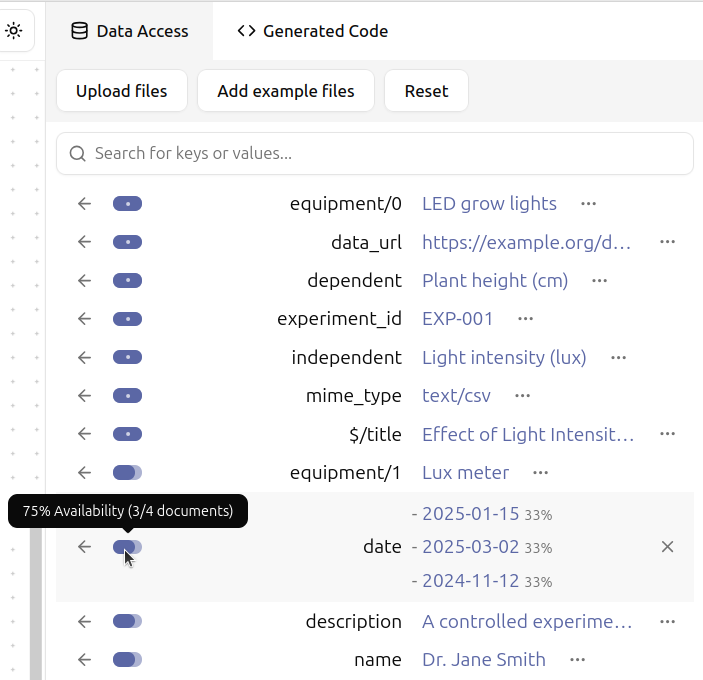
Shown here is a merged representation of the structure of the uploaded JSON files. The small bar to the left of each field represents the number of times that field appears in the uploaded JSON files. Note how hovering over elements in this view will in many cases offer additional information. Fields that appear in all uploaded JSON files can be used without caution, while rarely present fields can either be used in optional FAIR DO attributes or require a fallback. Fallbacks may be realized using the otherwise block.
Creating queries
To create queries, you first have to upload one or more files in the Data Access tab. Alternatively, one may use the example files for experimenting with the FAIR DO Designer.
Once you see a structured representation of your data, you can create queries by dragging and dropping rows from the Data Access tab onto the Workspace. A query block will be created at the drop location. Alternatively, click the arrow on the left of each row, placing the block on the workspace. You can right-click on a query block to view and edit the generated query.
Query blocks contain only the generated query. Resetting the Data Access tab or uploading new files will not affect existing query blocks.
You can write your own custom queries using the available data query blocks. It is also possible to adapt the generated code to include any querying mechanism of your choice.